
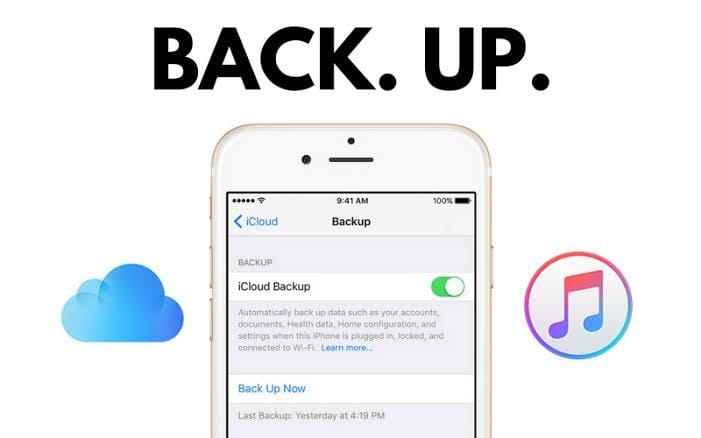
Backing up your iPhone keeps your photos, messages, contacts and settings safe if your phone is lost, stolen or broken. It only takes a few minutes to set up, and you can choose iCloud, a Mac or a Windows PC.
How to back up your iPhone with iCloud
iCloud backs up your iPhone automatically over Wi-Fi while it is charging and locked.
- Connect your iPhone to Wi-Fi.
- Open Settings and tap your name at the top.
- Tap iCloud, then iCloud Backup.
- Turn on Back Up This iPhone.
- Tap Back Up Now and stay on Wi-Fi until it finishes.
Apple gives every account 5 GB of free iCloud storage. If your backup is bigger than that, your iPhone will ask whether you want more storage.
How to back up your iPhone to a Mac
- Connect your iPhone to your Mac with a cable.
- Open Finder and click your iPhone in the sidebar.
- If asked, tap Trust on your iPhone and enter your passcode.
- Choose Back up all of the data on your iPhone to this Mac.
- Click Back Up Now.
How to back up your iPhone to a Windows PC
- Install the Apple Devices app (or iTunes) from the Microsoft Store.
- Connect your iPhone to your PC with a cable and open the app.
- Select your iPhone, then choose to back up to this computer.
- Click Back Up Now.
How to check your last backup
On your iPhone, go to Settings > your name > iCloud > iCloud Backup. You will see the date and time of the last successful backup.
Need help backing up your phone?
If your iPhone will not back up, or you are moving to a new phone and want help, AA Computer Help can walk you through it at home or remotely. Call 203-440-6053, 7am to 11pm, 7 days a week.

